
In the last couple of days, there have been a number of postings about the new preview for the 2013 release of products from Microsoft, specifically Lync 2013. Jeff Shertz has provided a very thorough discussion of Lync 2013 video interoperability here, and Chris Norman has written up a nice summary of why going Lync 2013 Standard for SMBs is going to be an improvement over Lync 2010 here. There are plenty of documentation and training links that I will write up at the end of this, but what I wanted to do here is spend some time going over some of the client changes based on my initial use over the past week.
Compatibility
So first things first, you will need to be able to use it or there is really no point is there J. Microsoft has posted a terrific set of documentation ahead of the release of Lync 2013. This alone is a terrific improvement and helps get IT Pro’s ahead of the curve. The Lync 2013 interoperability table provides a breakdown of the different clients going all the way back to Communicator and Live Meeting. The table will show compatibility with the different versions of Lync Server and OCS. Bottom line, you have to have Lync 2010 deployed at a minimum (or Lync Online) to be able to play with the Lync 2013 client preview. The Lync Web App (new to 2013) is only compatible with Lync 2013 server, so we will have to cover those capabilities in another posting.
How do you get the client?
I can’t explain exactly why, but right now, the only way to get the Lync client today is to install the Office 2013 Preview. I haven’t messed with the install for Office just yet, so I went ahead and dove in and installed all of Office 2013 Pro Plus. I found that I could install only Lync 2013 and it could co-exist with Lync 2010. The login screen and main UI look very much like the previous version of Lync with the nuances associated with the new Office 2013 UI
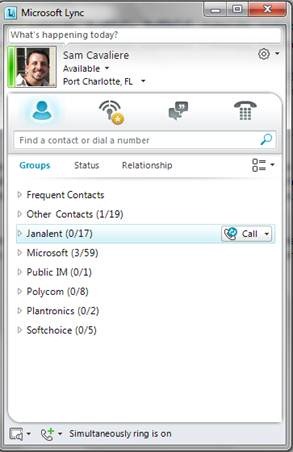
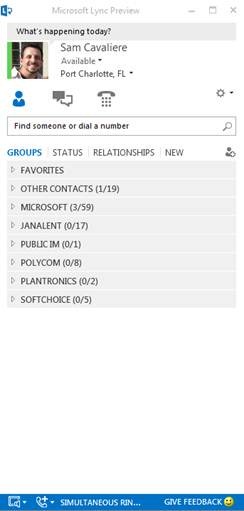
As you see, there are a lot of similarities to the 2 clients. There are some nuance changes to the UI, in particular they have streamlined the UI a little bit. With Lync the development team was looking to make as much functionality available on the main screen without having to dive through menus. That theme is continued here in the 2013 client. Happily there aren’t any new menus. The real changes are in the UI during the different communications.
Tabbed IM
Folks who have been waiting for Tabbed IM will be happy to see that it is a standard feature in Lync 2013. Personally, I was never a real fan of it, so it will take some getting used to.
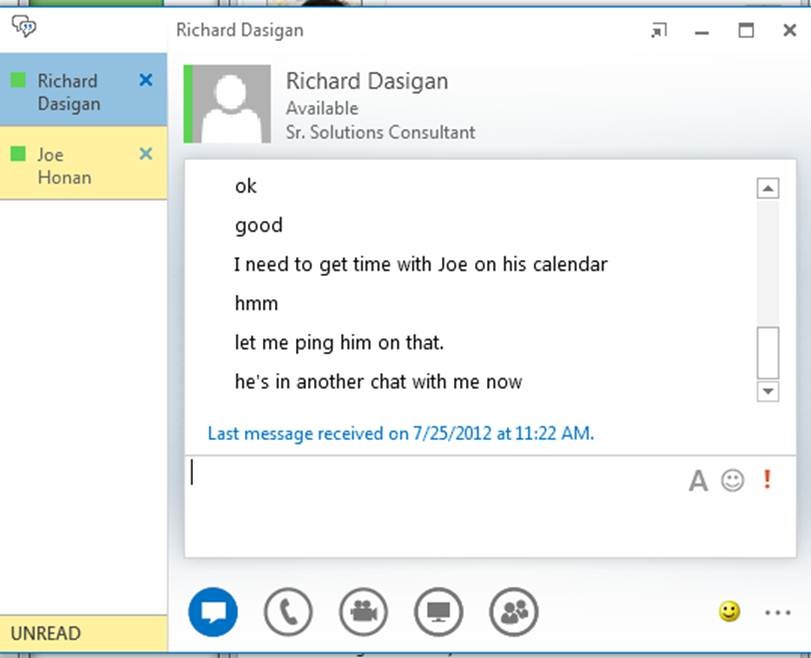
In this implementation, the shortcut on the bottom left will take you direct to the unread message that you have. Of course, you also have the flashing indicator on the conversation that has unread messages as well. As I said, it will take some getting used to, but I doubt that it will be much of a learning curve. I like this implementation a lot more than the “tabbed converations” application that was available as part of the free downloads of the training and adoption kit for Lync 2010.
Some other Nice UI enhancements – Conferencing
It will require several more postings to cover all of the UI enhancements, so I am going to go through a couple of the nice things I noticed while I was participating in a conference using a federated partner’s conference center on Lync.
First, the UI is streamlined. Now I know I said that in Lync 2010 there was an effort to streamline the client experience, but the product team has done even more to make the client a more intuitive experience. I would encourage users to keep an open mind when trying the product. It WILL be different, especially if you are going from OCS R2 to Lync 2013 directly. The initial view of a conference with audio is pictured below:
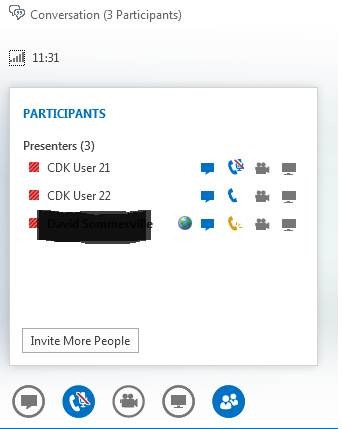
You have a view of the participants in the meeting. The IM Window is not immediately available because you are on an audio call, but you can see that IM is available for each of the participants. Audio is currently enabled with our mystery participant currently speaking, CDK User 21 muted and CDK User 22 unmuted. Video and other sharing is not currently available. The “Invite More People” button is more prominently displayed and you can see from the bottom buttons that my client is currently muted for audio. I can unmute easily by just clicking on the microphone. This view is known as the “compact view”.
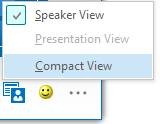
The other view is the speaker view as shown above. The speaker view is a more expanded view that includes the photos of the speakers:
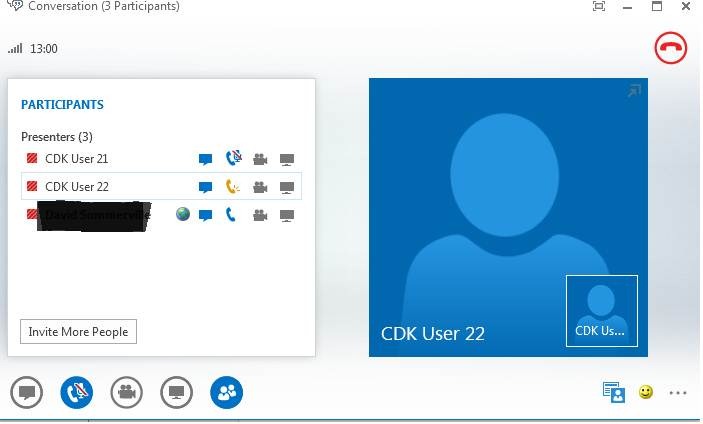
The active speaker is displayed as the large picture and your picture is displayed in the lower right.
Clicking on the phone icon (second icon in from the left) displays the phone controls for the audio portion of the conference
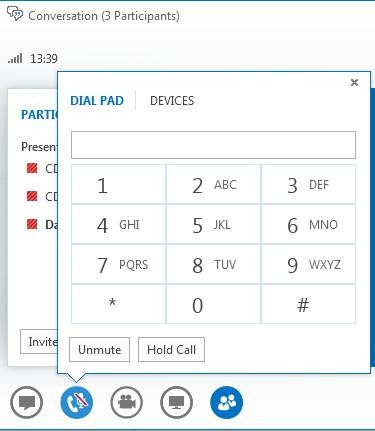
The dial-pad view is initially displayed with the phone buttons and the controls to mute and hold controls. Unmuting your call can be accomplished through this screen, OR, by simply clicking on the mute icon in the compact view

Switching from the dial-pad to the device view will offer the opportunity to change the current audio device in use
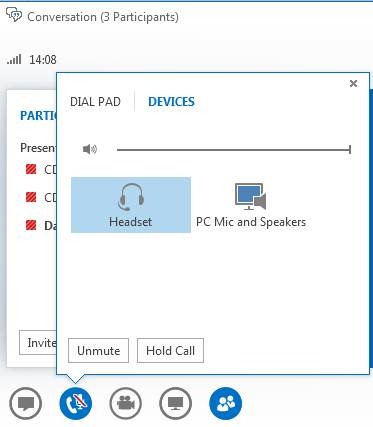
I will need to spend more time with this. I’m not sure that this is an improvement over previous versions. I do like having access to the volume control and device selection through the one screen and that I still have the ability to mute/unmute as well as place the call on hold.
If you click the participant icon (on the right) you get the participant configuration options
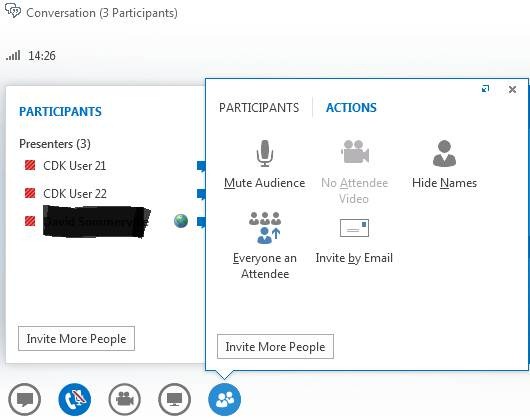
You have the option to hide the names of users, make everyone an attendee (very handy for internal meetings) preventing attendees from having video as well as muting an entire audience. A very nice set of selections that make this product much more friendly for larger meetings and webinars. My hope is that we will see an attendee support increase in Lync 2013 to support larger meetings than Lync 2010.
In Part 2 of this article, I’ll go over the presentation options and the video options. Lync 2013 offers a number of nice UI enhancements to both. In the meantime, look below for more details on Lync 2013 and visit the different blogs that I have hyperlinked in this session since the MVPs have taken the time to share information so you don’t have to figure it out yourself!!!
| Client Comparison Tables | http://technet.microsoft.com/library/gg425836(v=ocs.15) |
| Lync Web App supported platforms | http://technet.microsoft.com/en-US/library/gg425820(v=ocs.15) |
| Lync 2013 Technet preview | http://technet.microsoft.com/library/gg398616(v=ocs.15) |
| Lync Developer Training | http://msdn.microsoft.com/en-us/lync/gg394196 |
Keep Communicating!!
-Sam Cavaliere
Sam.cavaliere@janalent.com


Leave a Reply